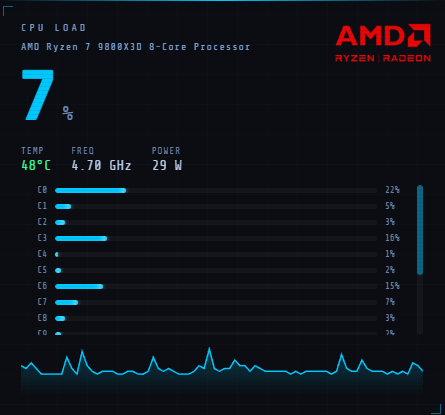
CPU
Total load history with a sparkline, per-core load bars, current clock frequency, package temperature, and power draw.
- Total & per-core load (%)
- Clock frequency (GHz)
- Package temperature (°C)
- Package power (W)
Real-time hardware monitoring built for a dedicated secondary display — portrait or landscape — or scatter individual panels freely across any screen in floating mode. CPU, GPU, RAM, network, disk, NVMe/SSD temperatures, motherboard sensors, live process monitor, and a built-in multi-GPU selector for stable tracking.
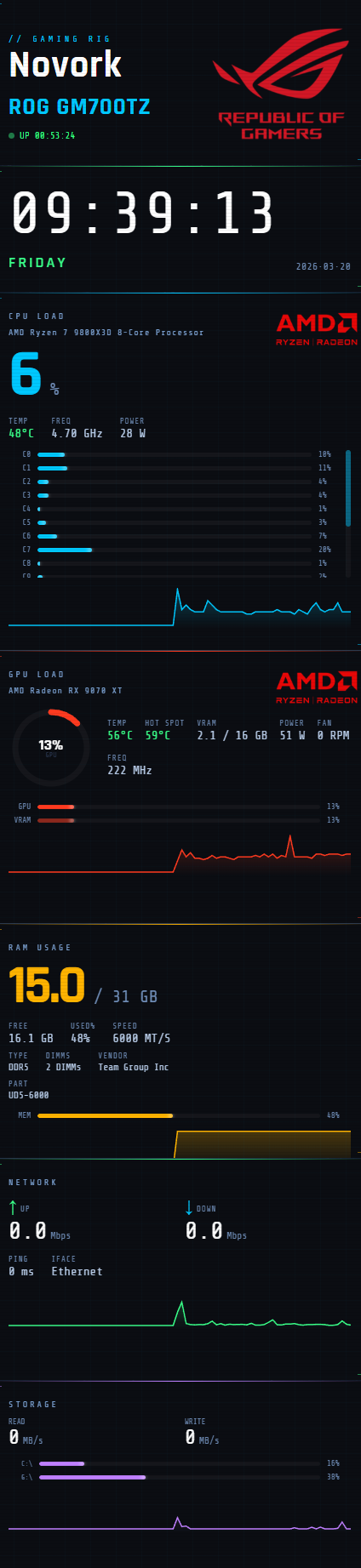
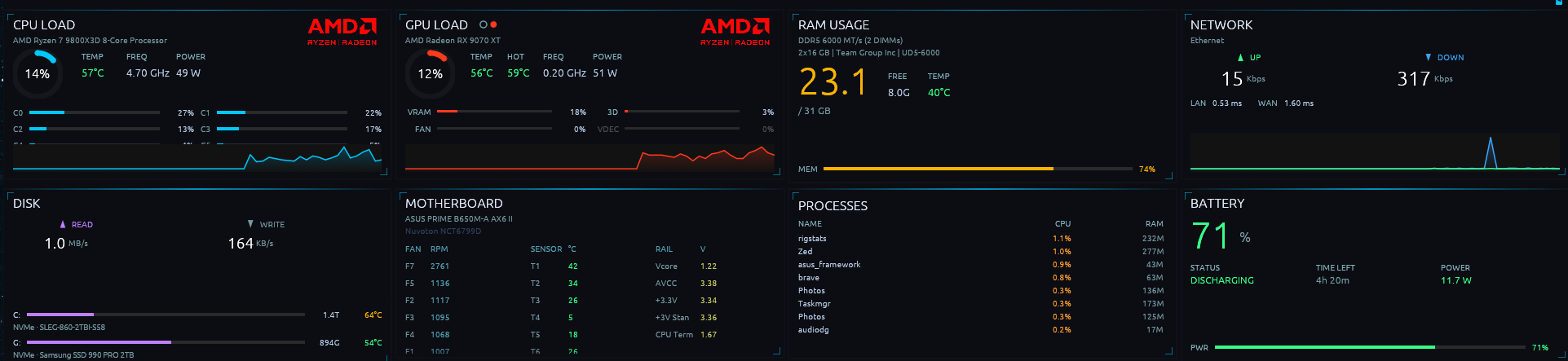
Designed for 450 × 1920 vertical side displays, with matching landscape profiles (e.g. 1920 × 450) that pack the panels into an adaptive grid. Multiple display profiles fit different monitor sizes and auto-target the right screen.
LibreHardwareMonitor provides per-core clocks, GPU hot-spot, memory clock, VRAM, fan RPM, and D3D engine workloads — not just OS counters.
When your system has both iGPU and dGPU, use the GPU panel selector to pin exactly which device should be shown.
CPU model, GPU name, RAM spec, and system brand logo are all detected at startup with no manual config.
All data stays on your machine. No accounts, no cloud, no background uploads. Ever.
Configurable warning and critical thresholds for CPU, GPU, RAM, and disk. Windows tray notifications fire when a component runs hot — with a cooldown to prevent spam.
Checks for new versions in the background every 6 hours. A badge in the header lets you update with one click — no manual download required.
Switch to floating mode and each panel becomes a draggable, always-on-top window you can place anywhere on any screen. Positions persist across restarts.
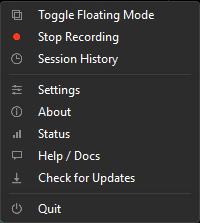
Start and stop recording sessions straight from the tray menu — the tray icon blinks while one is live. Browse, chart, rename, pin, and delete past sessions in the History window.
Every tray menu row has its own procedurally-drawn icon — no bundled images — with a blinking red dot on Stop Recording while a session is live.
Portrait fills a dedicated vertical display; landscape arranges the same panels in an adaptive grid on a wide screen. Floating mode lets you place each panel wherever it fits — on your gaming monitor, your side screen, or anywhere between.
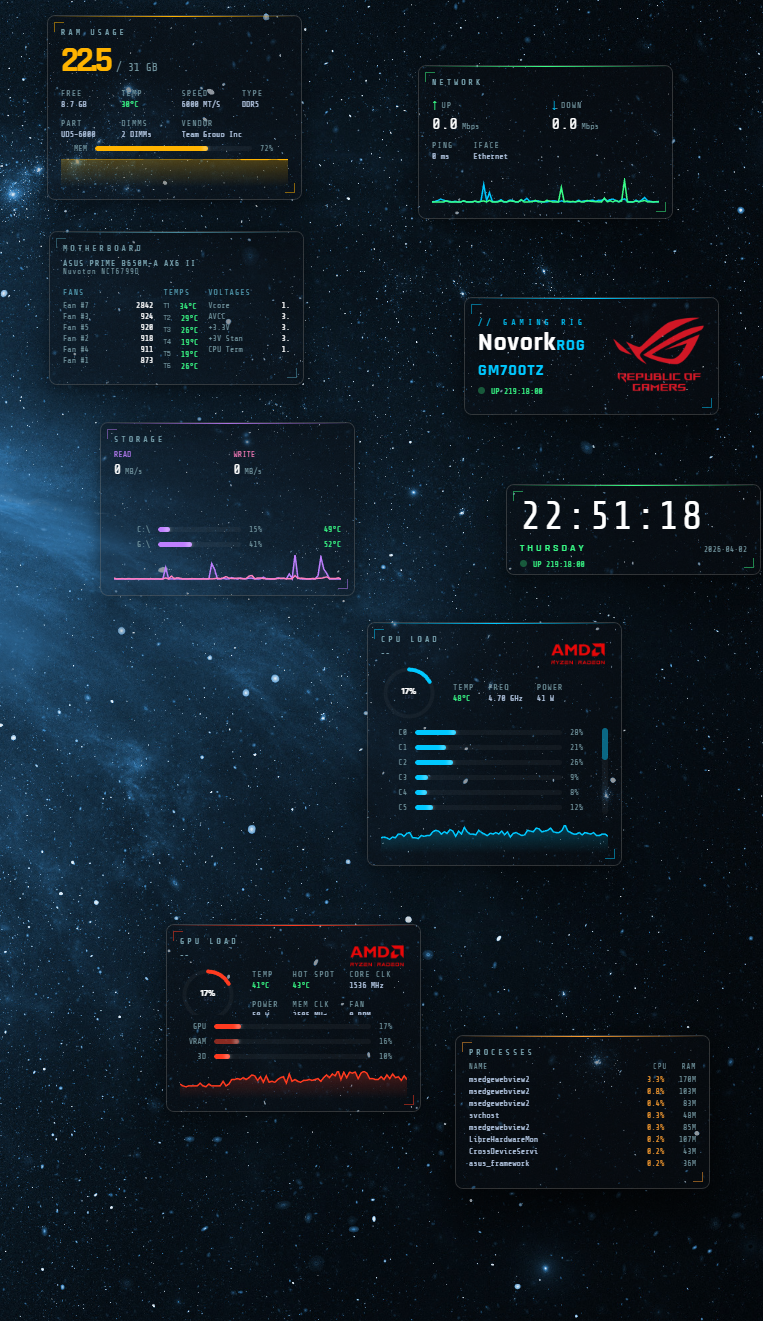
Mount the dashboard directly into the Windows desktop layer — permanently visible on your primary monitor, never overlapping your apps or taskbar.
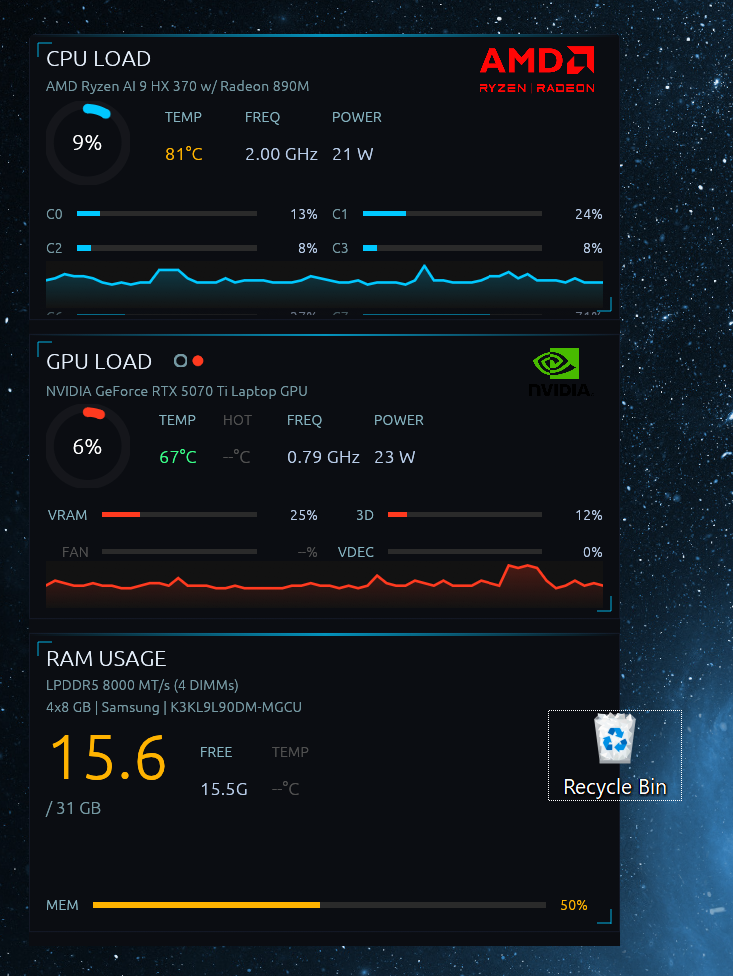
Runs in the Windows WorkerW layer — the same layer as your desktop wallpaper. Visible in any gaps between windows and on empty desktop space, without covering anything.
Press Win+D to show the desktop and the dashboard stays put — unlike Always Behind mode, the WorkerW layer is not affected by the Show Desktop command.
The wallpaper host (rigstats-wallpaper) runs isolated from the main app. It never appears in Alt+Tab, never steals focus, and exits automatically when the parent stops.
Because the host is a separate process, changes can't be previewed live. Settings apply on Save, and the display profile is locked while in wallpaper mode — switch layer to change it.
Every menu row now has its own procedurally-drawn icon — no external image assets — and starting a recording is one click away.
Each panel tracks exactly what matters for that component — with sparkline history so you see trends, not just a snapshot.
Total load history with a sparkline, per-core load bars, current clock frequency, package temperature, and power draw.
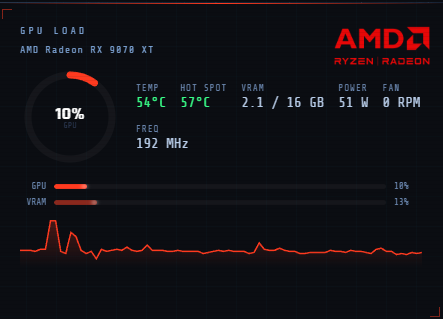
Core load, temperatures, clocks, power, VRAM, and fan load. D3D engine workload breakdown shows when the GPU is rendering 3D or decoding video. Includes a multi-GPU selector so you can pin a specific GPU instead of auto-switching each tick.
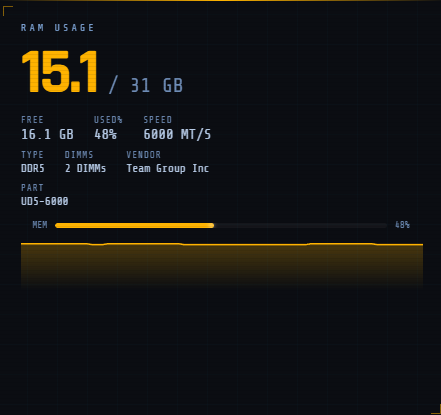
Current usage alongside the full memory spec read directly from BIOS — type, speed, stick identification, and live DDR5/DDR4 temperature.
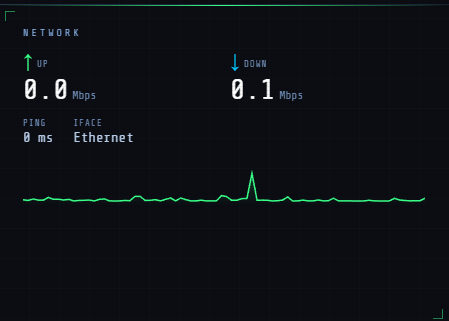
Live upload and download throughput for the best active interface, plus LAN gateway and WAN latency. Upload and download are shown as separate coloured series in the sparkline.
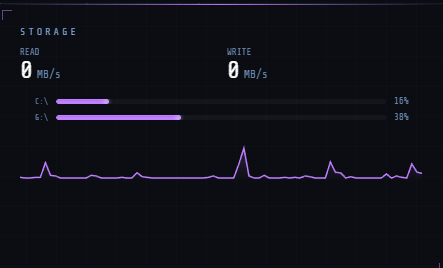
Aggregated read and write throughput across your primary drives, plus per-drive capacity, usage, and live NVMe/SSD temperature. Read and write are shown as separate coloured series in the sparkline with matching coloured labels.
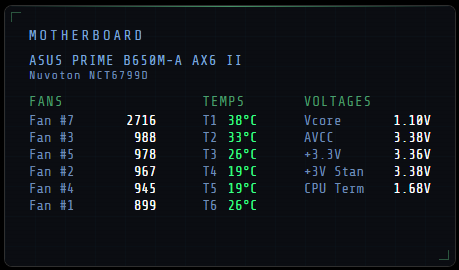
Super I/O chip sensors for the full board — all active fan channels, board temperatures, and key voltage rails. Board name and chip model auto-detected at startup. Optional panel, enabled in Settings.
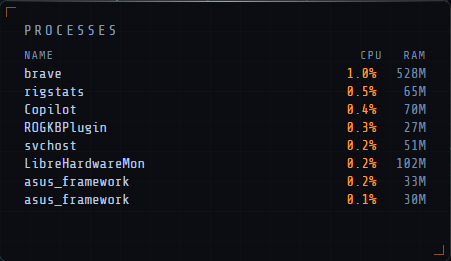
A miniature Task Manager always visible on the portrait display. Shows the top 8 processes sorted by CPU usage so you can instantly see which game, encoder, or background service is consuming your hardware. Optional panel, enabled in Settings.
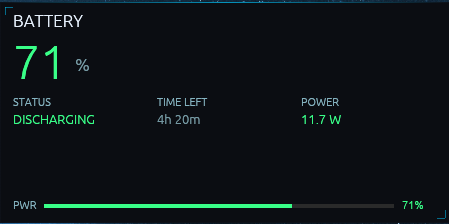
Live battery status for gaming laptops. Shows charge percentage, charging/discharging state, estimated time remaining, and live power draw. Optional panel; shows "NO BATTERY" gracefully on desktop systems.
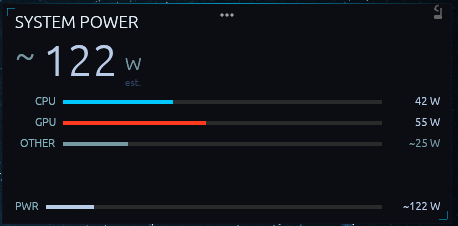
Estimated total system power draw with a CPU/GPU/Other breakdown, so you can see at a glance what your rig is pulling from the wall. Optional panel, enabled in Settings.
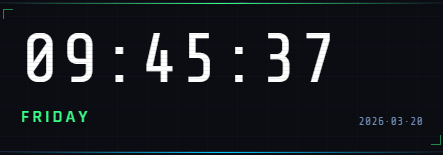
Current time, day, and date displayed cleanly at the top of the dashboard — always visible at a glance.
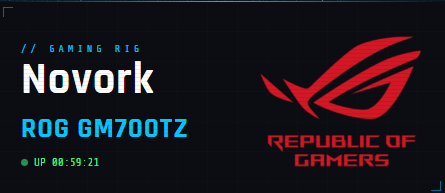
System brand, hostname, and model name auto-detected at startup. Recognized gaming OEMs — ROG, MSI, Alienware, Legion, OMEN, Razer, Predator, AORUS — display their brand logo automatically.
Data sources
Accessible from the system tray icon. Each dialog has a single, focused purpose.
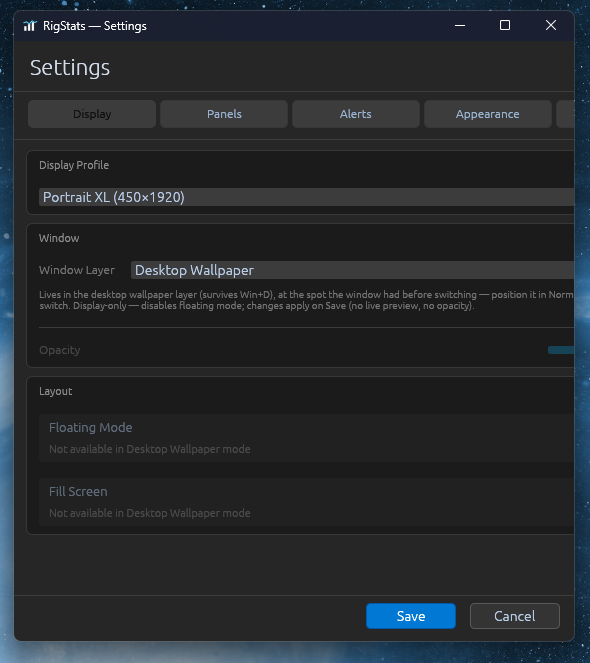
Five focused tabs to configure every aspect of the dashboard. Changes apply as a live preview; Cancel restores the previous state. In Desktop Wallpaper mode the dashboard is a separate background process, so settings apply on Save instead of live preview, no-op controls grey out, and the display profile is locked — switch to a non-wallpaper layer to change it.
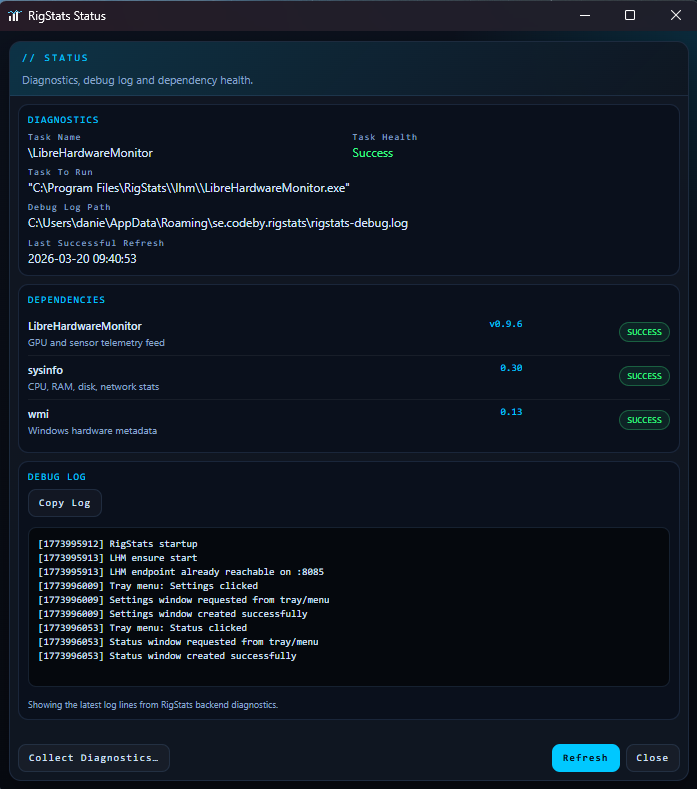
Runtime health view for every data source. Shows the rigstats-sensor Windows Service state, dependency health indicators, GPU driver versions with age warnings, the live debug log, and last successful refresh time.
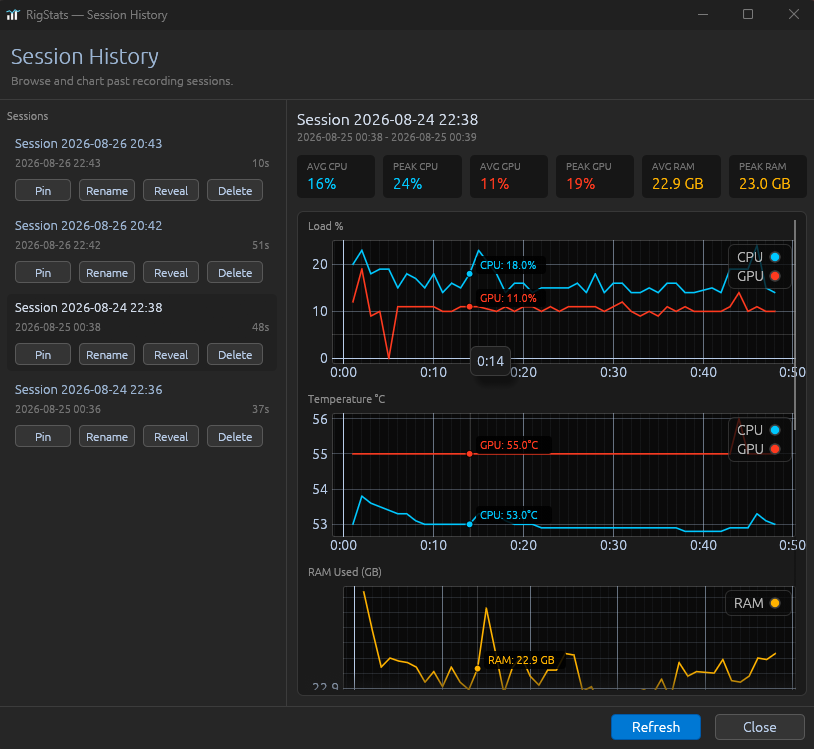
Browse and chart past recording sessions. Each session gets its own CPU/GPU/RAM/network/disk/ping charts with synced hover, so you can see exactly what happened during a gaming session or stress test.
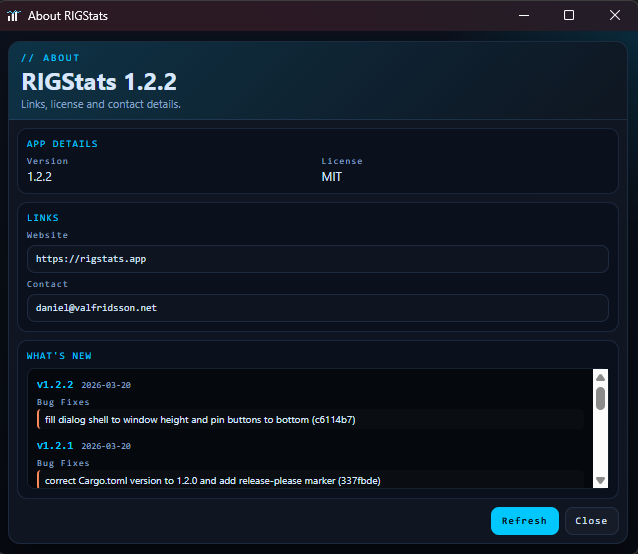
Product information at a glance. Shows the current version, license, contact links, and the full technology stack the app is built on.
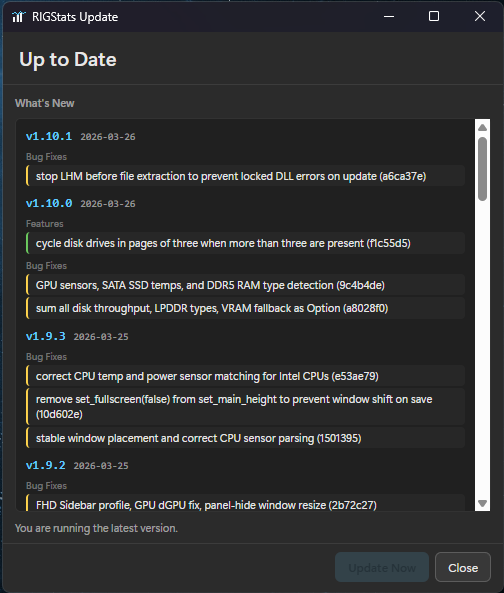
Checks for new versions silently in the background every 6 hours. When an update is ready, a badge appears in the dashboard header. The dialog shows the new version's release notes from GitHub alongside the full local version history.
A single NSIS installer handles everything — including setting up the LibreHardwareMonitor sensor as a Windows Service so sensor data is available immediately at startup.
Grab the latest .exe from the releases page below.
Accept the UAC prompt — admin rights are needed to register the RIGStats sensor Windows Service.
The app starts to the tray. Click the icon to open the dashboard or access Settings, Status, About, and Updates & Changelog.
All versions available on the GitHub Releases page.
Or install via winget: winget install Codeby.RIGStats
RIGStats has a built-in diagnostics export that captures everything needed to investigate sensor or hardware compatibility issues.
Right-click the tray icon → Status.
A Windows save dialog lets you choose where to store the ZIP archive.
The archive contains the debug log, sensor tree, hardware info, and settings — no personal files or credentials.
| File in ZIP | Contents |
|---|---|
manifest.json | Collection timestamp and RIGStats version |
debug.log | Full debug log for the current session |
debug-prev.log | Debug log from the previous session — captures a crash |
settings.json | Current user settings |
install.log | NSIS installer/upgrade log |
sidecar-log.txt | Raw log from the rigstats-sensor Windows Service — LibreHardwareMonitor startup and pipe-server activity |
sensor-tree.txt | Full LHM hardware and sensor tree at last service start — identifiers, types, and values |
hardware.json | WMI snapshot: OS, CPU, GPU, motherboard, RAM |
sidecar-service.txt | rigstats-sensor Windows Service state |
environment.txt | Windows build, architecture, computer name |
event-log.txt | Recent Windows Event Log entries matching RIGStats |
sysinfo.json | sysinfo snapshot: CPU, disk, network, RAM |
displays.json | Connected monitors and which one was auto-selected |
Nothing is uploaded automatically. The ZIP is a local file — you decide whether to share it.
Create a GitHub issue and attach the diagnostics ZIP for the fastest resolution.
Architecture notes, setup guide, release process, and troubleshooting docs are maintained in the repository.
Browse docs on GitHub →